
Shortcuts & customization
Ten years of muscle memory shouldn't be a switching cost. Make the keyboard yours.
Estimators live on the keyboard, and everyone's hands learned a different layout. Groundwork Takeoff lets you rebind virtually every shortcut, and puts the controls you adjust constantly — zoom, snap, crosshair — one click away in the status bar and View tab.
Rebinding keyboard shortcuts
Open Settings → Keyboard Shortcuts. Every rebindable action is listed with its current chord.
- Click the shortcut you want to change. The row enters capture mode.
- Press the new keys. The editor records exactly what you press — modifiers and all — rather than making you type out key names. Press
Esconce to cancel capture (press it twice in a row if you actually wantEscitself as the binding). - Watch the conflict badges. An amber badge warns you the chord shadows something reserved — you can keep it, but know what you're trading. A red badge means the chord is owned by a core function and is rejected outright, so you can never lock yourself out of essentials.
- Undo any experiment. Each row has an unbind and a reset control, and a full Reset to defaults restores the factory layout in one click.
Your layout is saved on the device and applies everywhere in the app. The default chords keep working for anything you haven't touched, and the My Tools hotkeys 1–9 in the Tool Chest work alongside whatever you configure here.
Zoom: slider, percent input, and one-key jumps
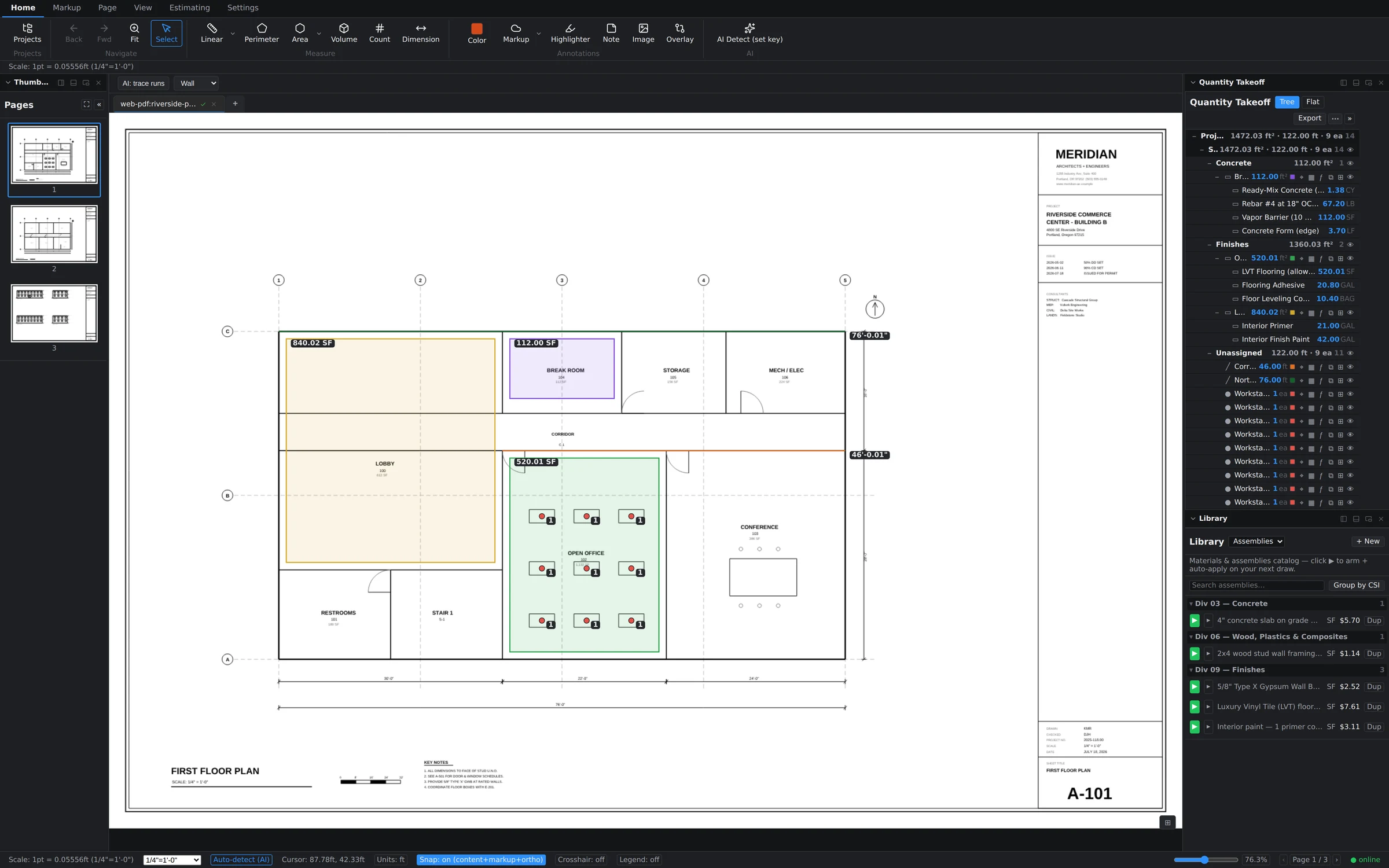
The status bar has a full zoom cluster: a slider for coarse moves plus an editable percentage readout — click it, type 150, press Enter, and you're at exactly 150%. Ctrl+1 snaps to 100%, and Fit is always on the ribbon. The same status bar shows the live calibrated cursor readout and the current scale, so you always know what a click is worth in feet.
Snap preferences
Snap controls how your clicks land while drawing: snap to the drawing's own geometry for tracing walls precisely, ortho to hold horizontal and vertical runs true, or free placement when the plan's linework is more suggestion than fact. The current snap mode is always visible in the status bar while a tool is active, so you can confirm what a click will do before you commit it.
Crosshair
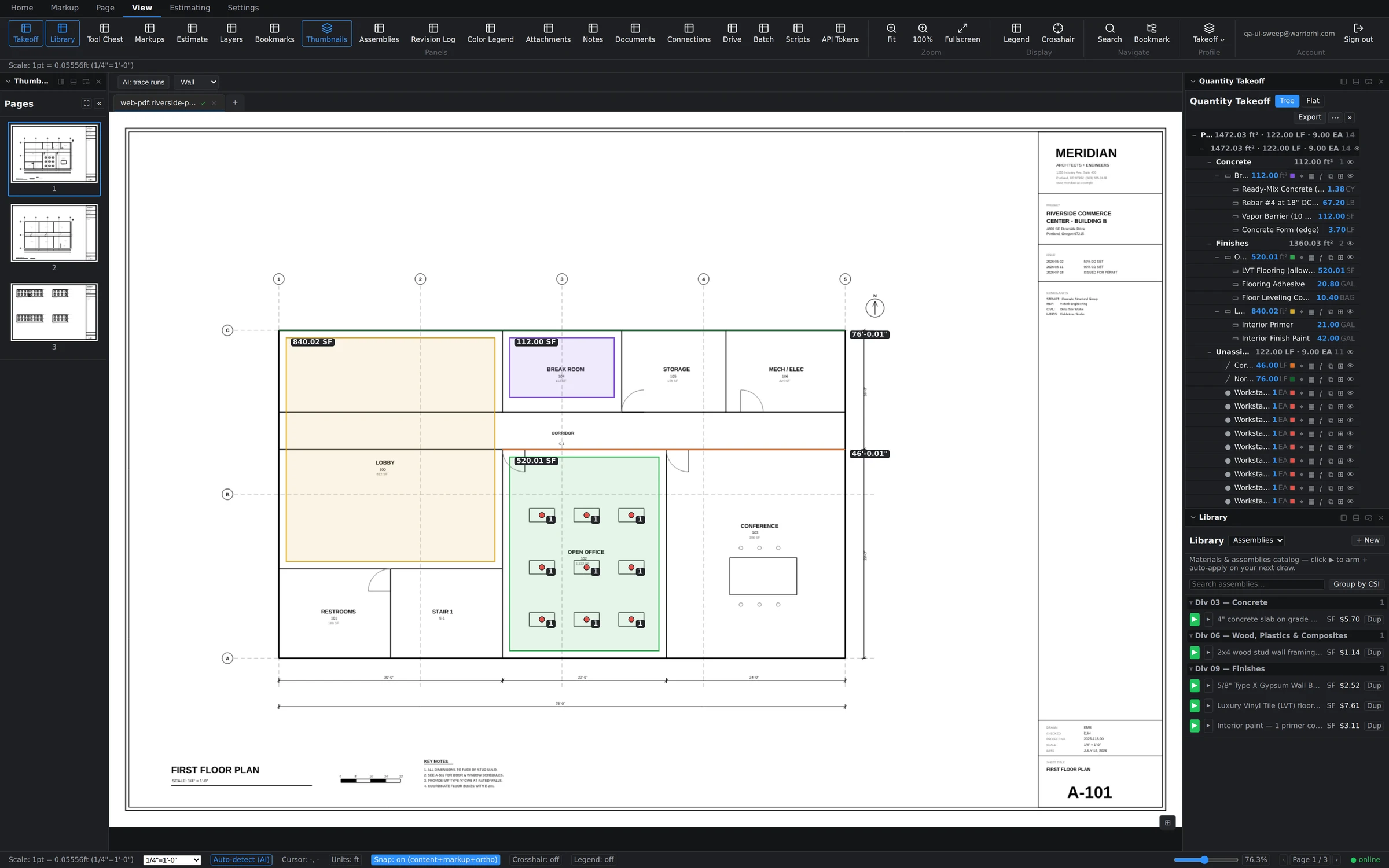
On the View tab, the Crosshair toggle replaces the pointer with full-height and full-width hairlines. It makes lining a vertex up with distant geometry — the far end of a gridline, a fixture across the sheet — dramatically easier on large-format drawings. The View tab is also where every panel toggle lives, so it's the place to shape the workspace itself.
A person answers support tickets, usually the same working day. Send it to support, or read what to include so it gets fixed first time.