
The measurement tools
Almost everything on a drawing reduces to one of six measurements. Know which tool answers which question and the takeoff nearly does itself.
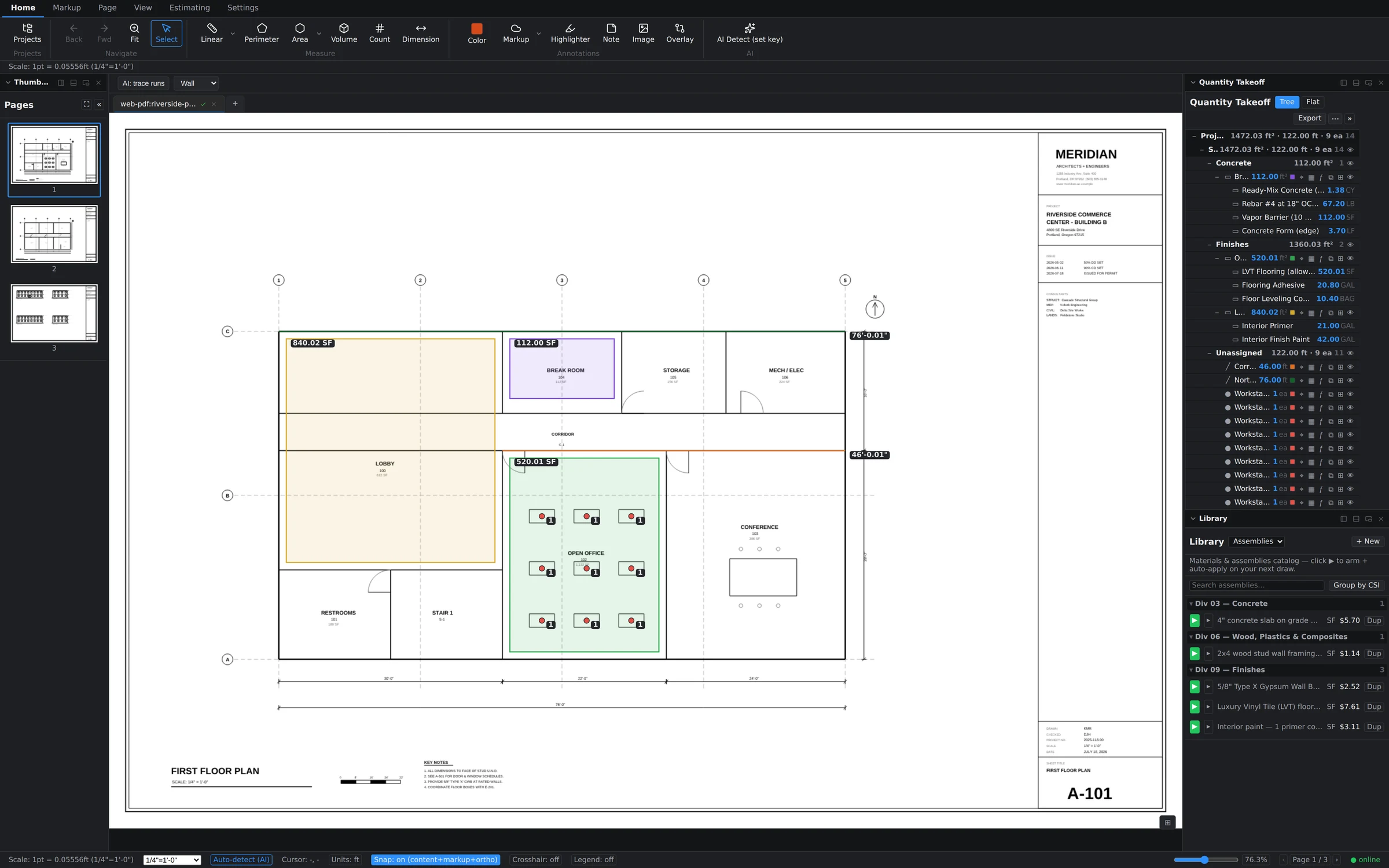
Six tools commit a quantity, and they all live on the Home tab, right after Select. Every measurement you commit gets a subject, lands in the Quantity Takeoff tree, and rolls up into live totals. Here's the lineup.
Linear — length along a path
Wall runs, pipe, conduit, curb, baseboard. Click to drop vertices along the path; the running length updates in the label and the status bar as you go. Right-click to finish. Reports in linear feet.
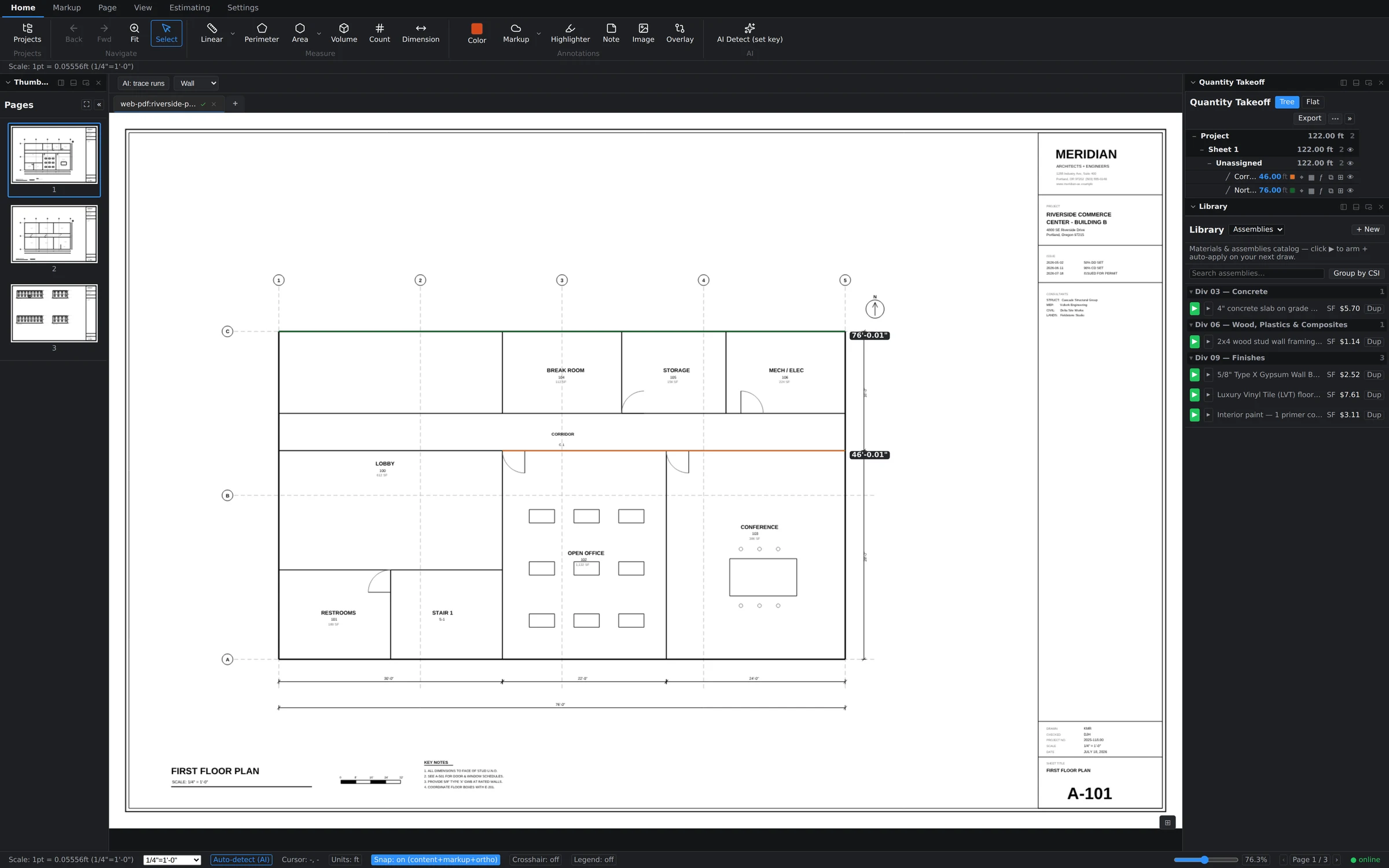
Segment — each leg on its own row
The same click-along-a-path motion as Linear, but every leg commits as its own row rather than one running total. Reach for it when the estimate prices runs individually — each bay of handrail, each pipe drop — instead of one lump LF figure.
Perimeter — distance around a shape
Slab edge forms, roof edge, fencing. Same drawing motion as Linear, but the shape closes and reports the full distance around it in LF.
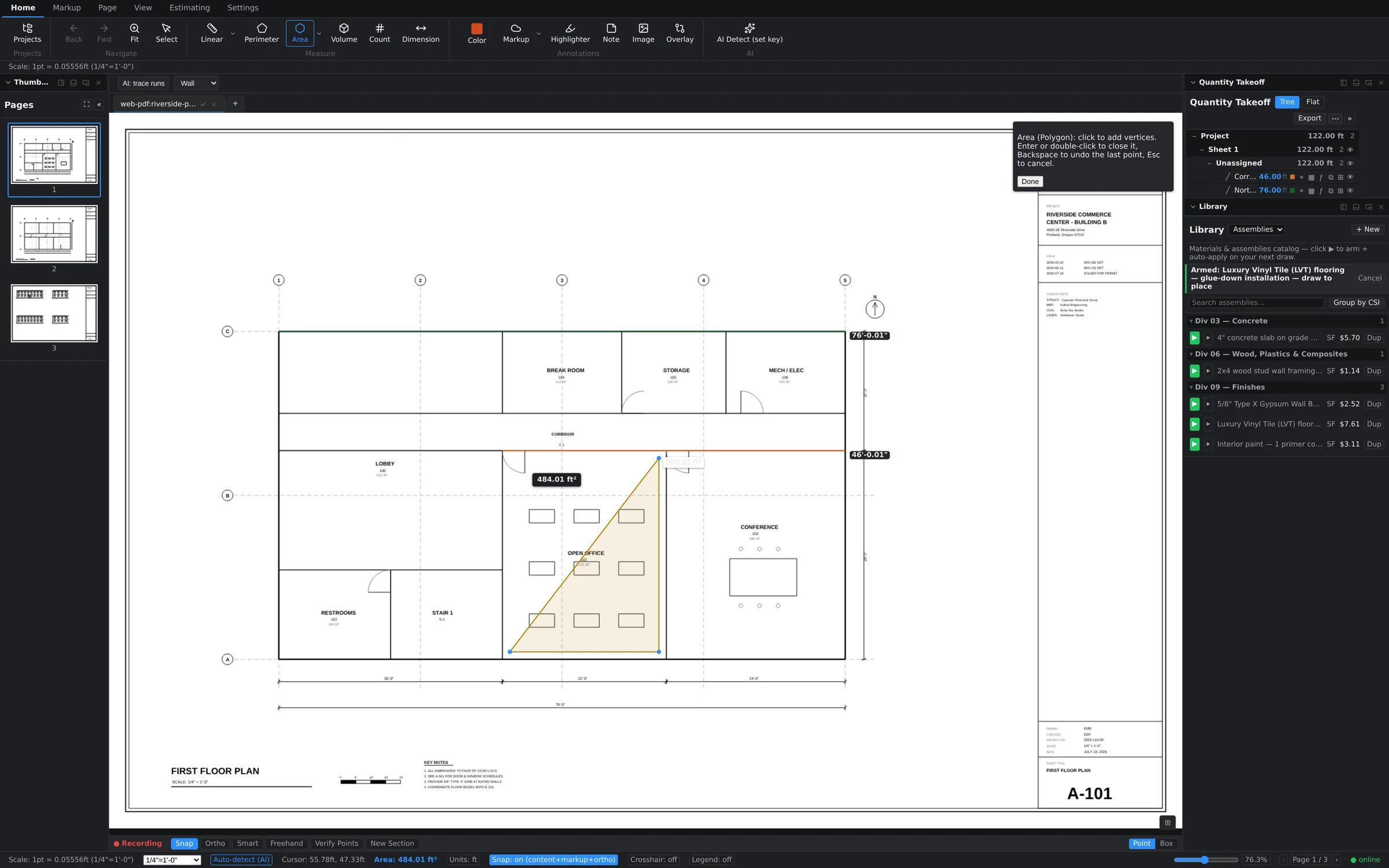
Area — surface inside a boundary
Flooring, paint, drywall, paving. Click around the boundary; a live SF readout tracks the polygon as it forms, and a tooltip reminds you of the mechanics: click to add vertices, double-click to close.
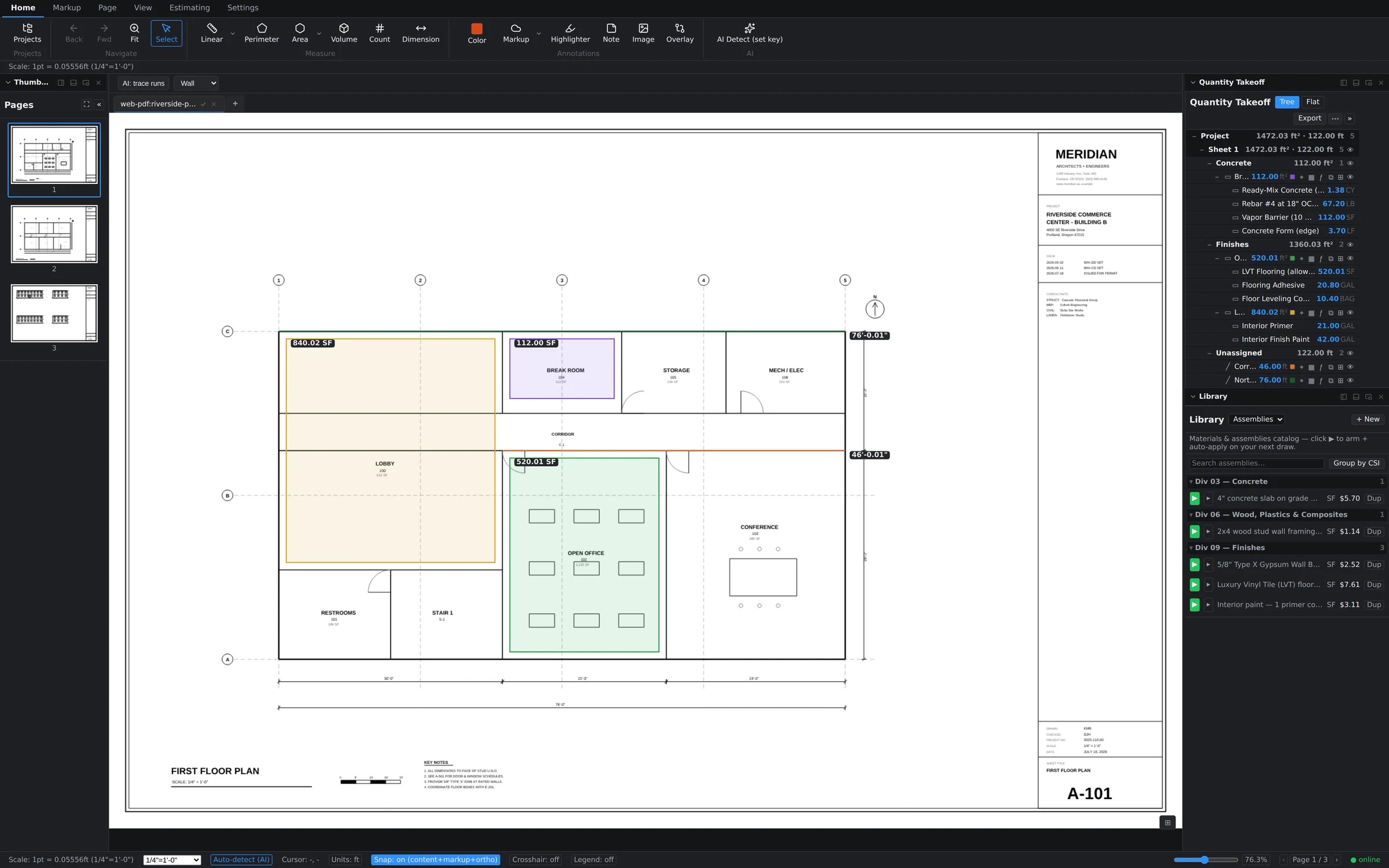
Volume — area with depth
Concrete slabs and footings, excavation, fill. Draw it like an area, give it a depth, and it reports cubic quantity. A 112 SF break-room slab becomes yards of ready-mix without leaving the sheet.
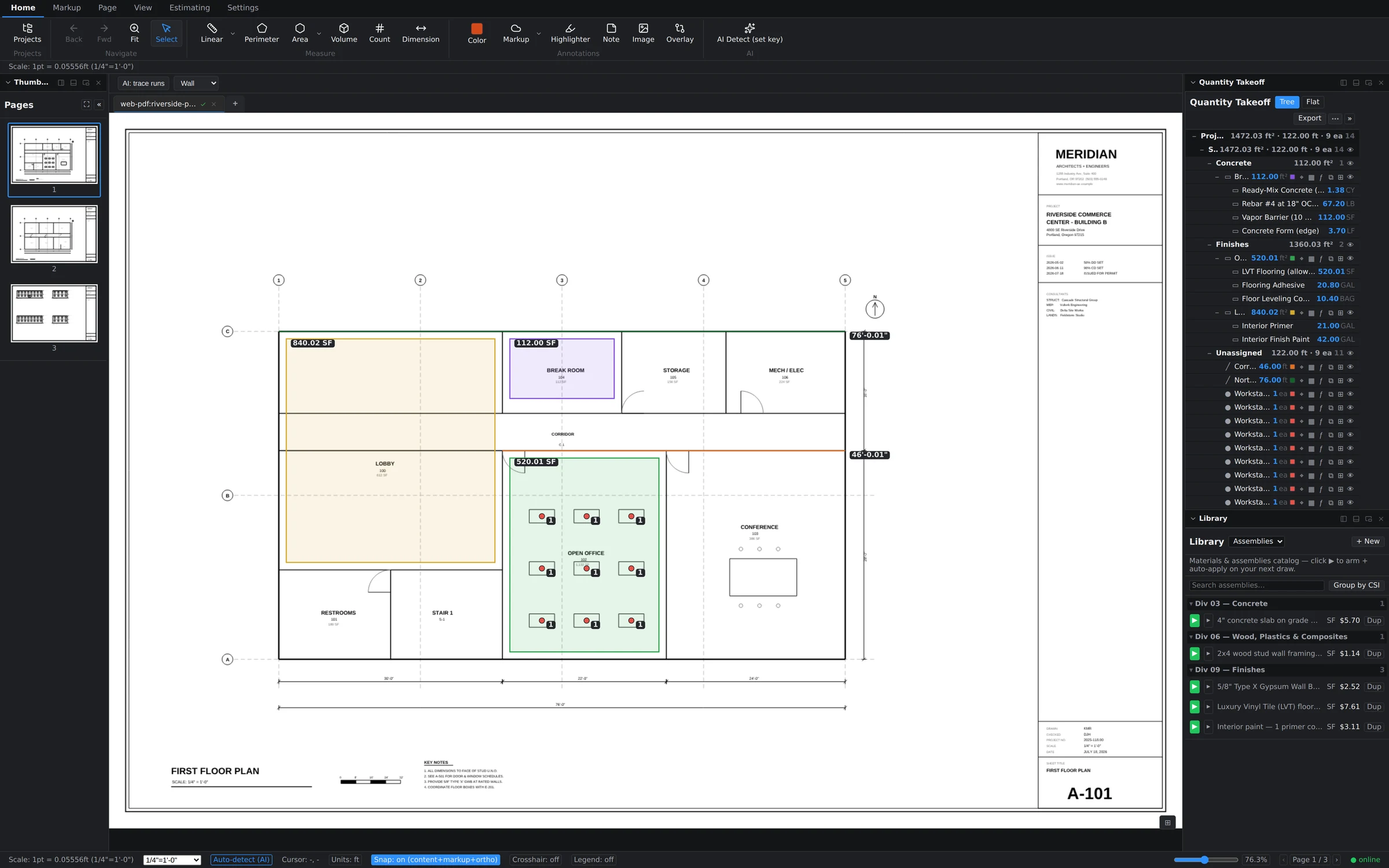
Count — how many of a thing
Doors, fixtures, receptacles, workstations. One click, one marker, and the tally climbs — all markers under one subject stay grouped in the tree. Counts also power AI detection when you'd rather not click 400 times.
Dimension — a check, not a quantity
Dimension is a markup tool rather than a seventh measuring tool, and it is deliberately not in the list above: it measures, but it commits nothing to the Quantity Takeoff tree. Snap one across a room or a grid bay to confirm a width, or to prove the sheet's stated scale is true before you trust it. The quiet workhorse of accurate takeoffs — just not a row on your estimate.
Drawing mechanics worth knowing
- Click-click or drag-to-draw. Click to place each vertex, or press and drag to draw in one motion — both work on the drawing tools. Use whichever your hand prefers.
- Right-click finishes a run. For multi-point tools, right-click commits what you've drawn. Areas close with a double-click.
- Subject at commit. When you finish, Groundwork asks for a subject ("Framing", "Open Office Flooring"). Name things the way your estimate reads — subjects become the rows you'll price.
- Snap and the status bar. While drawing, the status bar shows snap state and a live readout of the measurement in progress, so you always know what you're about to commit.
A person answers support tickets, usually the same working day. Send it to support, or read what to include so it gets fixed first time.