
Build a CPM schedule with baselines
Before you begin
Have the project's scope defined well enough to break into activities, and know your contract's milestone dates (notice to proceed, substantial completion, any interim liquidated-damages dates). If you have an approved estimate, you can draft a first-pass schedule from its line items instead of starting with an empty grid.
Steps
-
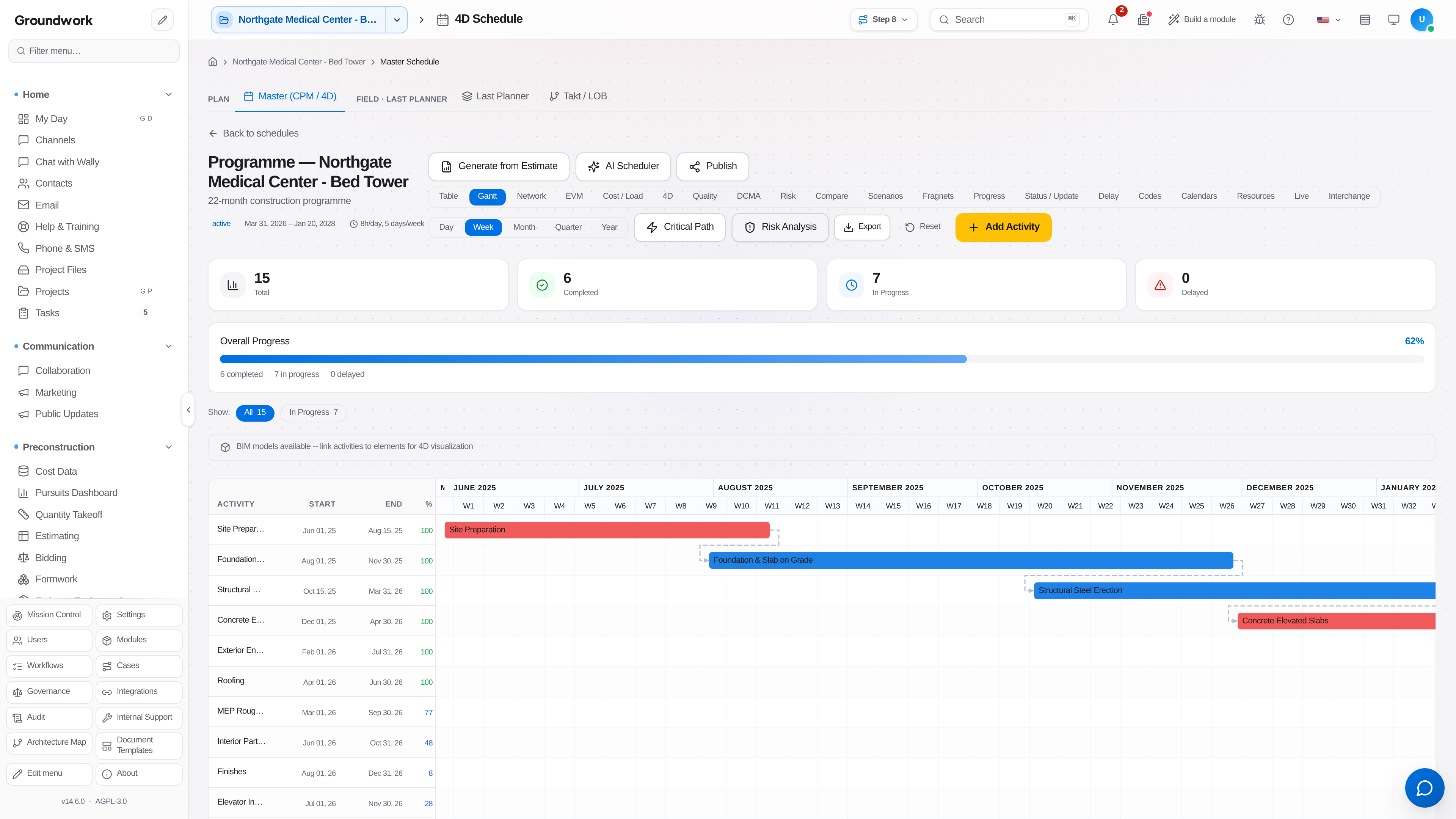
Go to Scheduling → Master Schedule and choose Create Schedule for the project.
-
Optionally choose Generate from Estimate to draft activities from the estimate's line items. The draft is a starting point that a scheduler reviews and applies explicitly, so it never becomes the live plan on its own.
-
Enter or refine activities with durations, then set predecessor and successor relationships (FS, SS, FF, SF) with any lag. The critical path recomputes as you go.
-
Apply project calendars and constraints: work weeks, holidays, weather-sensitive activity calendars, and any contractual date constraints.
-
Load resources and cost onto activities if you plan to track earned value. Resource and cost loading is what makes SPI and CPI real numbers instead of a monthly hand calculation.
-
Review the computed critical path and total float. Confirm the finish date meets your contract milestone before going further.
-
Save a baseline snapshot from the schedule's Status / Update view, under Baselines & variance (Capture baseline). This freezes the plan you're being held to, and every later status update compares against it.
-
Publish the schedule to distribute it to the team and, if required, to the owner.
What happens next
From here you status the schedule on a regular cycle: enter actual start dates, actual finish dates, and remaining duration on in-progress activities. Each status update recomputes the critical path against the frozen baseline, so schedule slip appears as a variance rather than being absorbed silently into new dates. If you want to test a recovery plan, clone the schedule into a scenario, run the what-if, and compare it side by side before promoting anything to live.
Where the record lives
Every baseline is retained under Baselines & variance in the schedule's Status / Update view, with the date it was set and who set it. Published schedule versions are kept as distributed, so a schedule handed to the owner in March can be produced in October exactly as it was sent.
Troubleshooting
The finish date moved but nothing looks late: check for activities with excessive total float or a missing predecessor. An unconstrained activity can absorb slip without appearing critical, which is exactly what the DCMA-14 check is designed to catch.
Critical path runs through the wrong work: usually a hard date constraint acting as a de facto predecessor. Constraints override logic, so a "start no earlier than" date on a non-critical activity can pull the path off course.
Baseline comparison shows variance on activities nobody touched: confirm the calendar didn't change after the baseline was set. Adding holidays or shortening the work week shifts dates on every downstream activity.
Still stuck?
Send this straight to support (it goes directly to support@groundworkai.io).