
Close out a punch list with drawing pins and photo proof
Before you begin
Upload the sheets for the area you're walking so items can be pinned to real locations. Confirm the subcontractors who will receive items are on the project directory, since punch items are assigned to a company, not just a name in a text field. Decide up front who will verify closures, because the person who resolves an item is not allowed to be the person who verifies it.
Steps
-
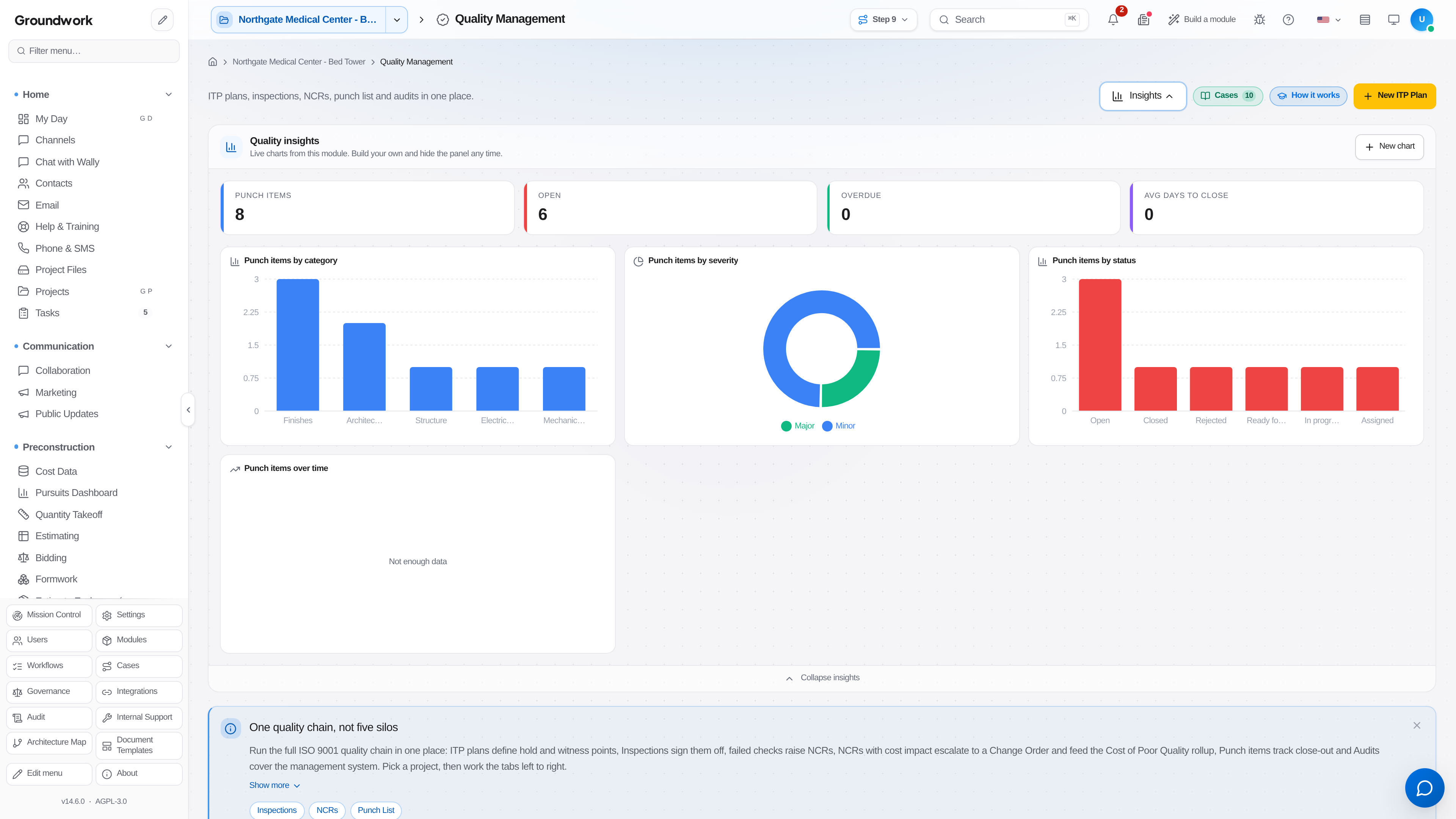
Go to Quality → Quality Management and open the Punch List tab. That's the punch register — there's no separate sidebar row, the quality hub owns the entry.
-
Create the item, then use Place on sheet to open the pin board. It loads the actual drawing; click the location of the deficiency to drop a pin. The pin is the location record, so "north wall, second floor" ambiguity goes away.
-
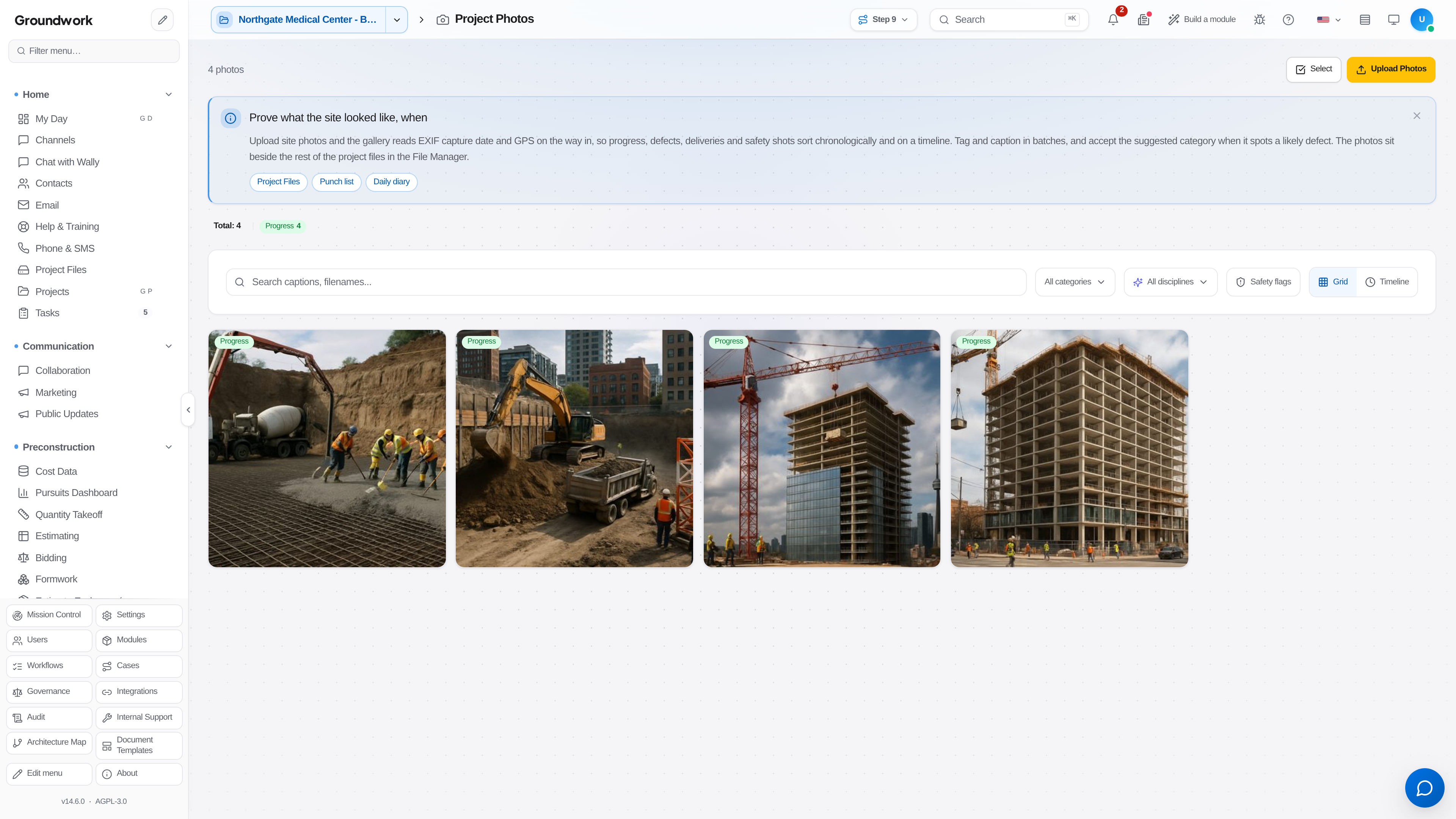
Add a photo and set its stage to Before. The gallery groups photos by stage — Before, After, General — so the pair that proves the fix stays together instead of being two files in a folder of two hundred.
-
Assign the item to the responsible subcontractor and set a due date. If the work is on someone else's dime, mark the item as a back-charge and record the amount. That's captured on the item itself, so the commercial consequence travels with the deficiency rather than being reconstructed at closeout.
-
The sub works the item and uploads an After photo against it.
-
Verify the item on a re-walk. Verification has to be done by a different user than the one who resolved it — the system refuses it otherwise, by name, rather than letting a sub mark their own work good.
-
If an item comes back, reopen it. Each reopen is appended to the item's reopen history, so a deficiency that was closed and failed three times reads as three failures rather than as one open item.
-
Repeat until the list is clear, then generate the punch list report for the owner or architect.
What happens next
Open punch items roll up to the project's closeout status, so the remaining count is visible without anyone assembling a status spreadsheet. Items assigned to a sub — and especially the back-charged ones and the reopen counts — become that sub's performance history, which is what informs whether you invite them to bid the next job.
Where the record lives
Every punch item stays in the punch register with its sheet pin coordinates, its before and after photos, its assignment, its back-charge flag and amount, who resolved it, who verified it, and its full reopen history. Items can be voided with a reason (a duplicate, or a condition that turned out to be per the design) but not deleted, so the record of what was raised survives.
Troubleshooting
Verification is refused: you're trying to verify an item you resolved yourself. That's the separation-of-duties rule doing its job — get the other set of eyes.
A sub marked items complete but they aren't: reopen the item rather than raising a new one. The original keeps its pin, its photos, and the sub's completion claim, and the reopen lands in the history where it's visible.
Same deficiency appears across many units: create one item per unit rather than one item covering all of them. A single item covering twelve units can't be partially verified, and it hides which units are actually done.
Still stuck?
Send this straight to support (it goes directly to support@groundworkai.io).