
Prequalify a subcontractor before you bid them
Before you begin
Know what your risk threshold actually is: single-project bonding capacity, EMR ceiling, minimum general liability limits, and whether the project has federal funding that triggers debarment screening and small business subcontracting goals. Have the subcontractor's contact so you can send them the prequalification packet rather than chasing documents by email.
Steps
-
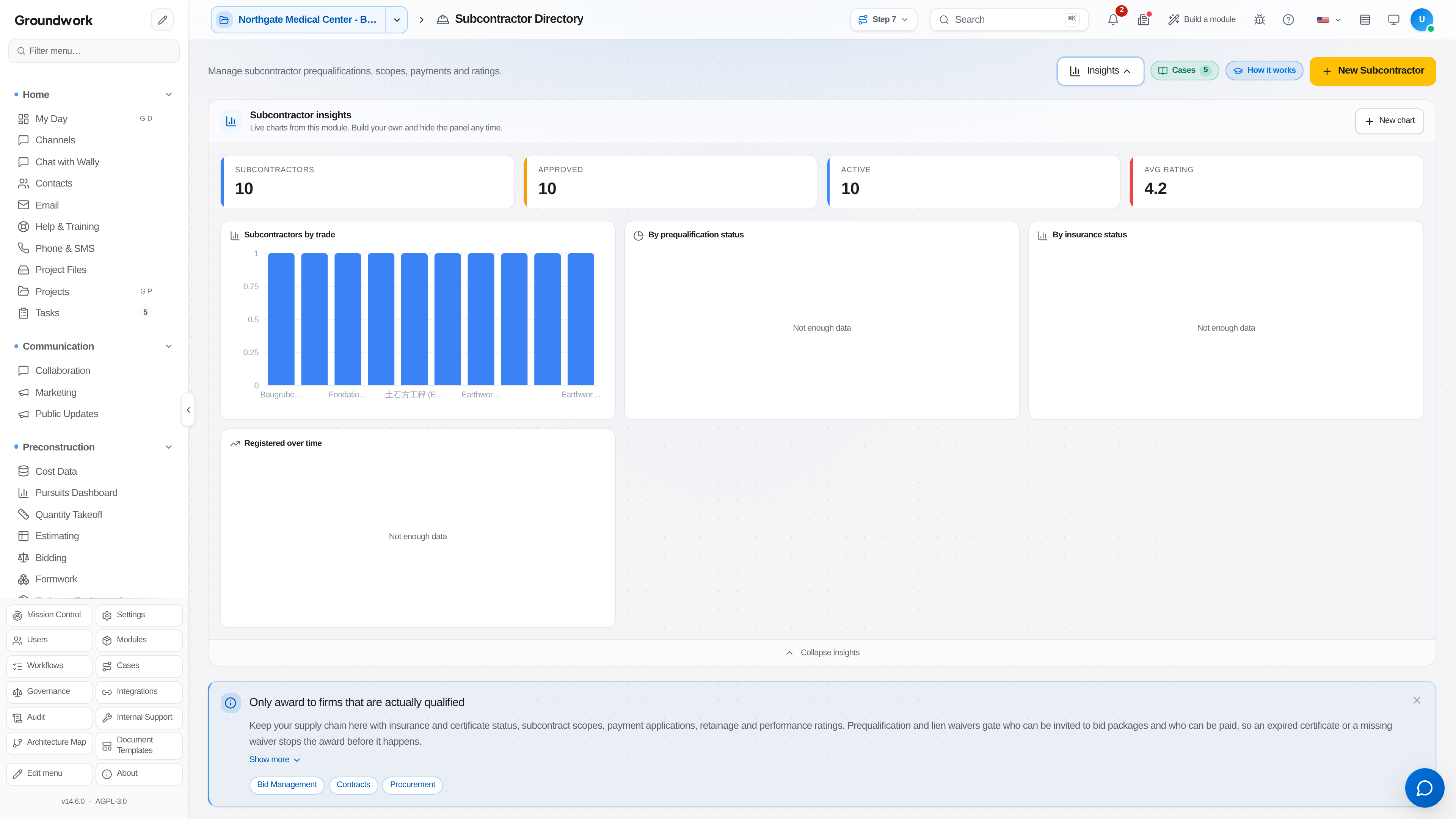
Go to Preconstruction → Bidding → Prequal. Applications start from the subcontractor's own record under Procurement → Subcontractor Directory, where Prequalify opens the questionnaire.
-
Choose the prequalification packet that matches the work. A packet for a $40,000 flooring sub and a packet for a $4 million mechanical sub should not ask the same questions, and the packet template controls which sections are required.
-
Send the vendor packet. The subcontractor receives a link to upload their financial statements, insurance certificates, safety record, license numbers, W-9, and references without needing a login to your instance.
-
Review the returned insurance certificates against your project requirements. Expiration dates are tracked, so a certificate that lapses before your projected completion date is flagged rather than discovered at closeout.
-
For federally funded work, run the debarment check. This screens the vendor against federal exclusion lists, and a hit here is a hard stop rather than a discussion.
-
Record the safety review: EMR, OSHA recordable rate, and any citation history. Attach the documentation rather than typing a number someone will later have to defend.
-
Set the outcome: approved with a single-project limit, approved with an aggregate limit, conditionally approved pending a specific document, or declined. Record the reason on a decline, since the same vendor will come back next year and the file should explain itself.
-
Approved subs become eligible for RFQ distribution. Declined and expired subs are filtered out of bid invitations automatically.
What happens next
Prequalification status gates who appears on the bid list when you distribute an RFQ. When a quote comes back and wins during bid leveling, the vendor already has a compliance file, which means the subcontract can execute without a two-week document chase. Awarding a bid package creates a draft subcontract for the winner, so the sub is inside the compliance check before their first pay application. Compliance documents keep tracking after award: expiring insurance triggers a notice, and a sub with a missing or expired certificate of insurance, license or lien waiver is held wherever money goes out — recording a payment, marking a bill paid, check runs and sub pay application approval. Paying anyway needs a written reason, which stays on the record.
Where the record lives
The prequalification answers and their date are retained on the vendor record under Procurement → Subcontractor Directory, and the qualification status is what Preconstruction → Bidding → Prequal reads when it lists who is cleared to bid. Performance history from completed projects attaches to the same vendor record, so next year's prequal starts from what actually happened rather than from a blank form.
Troubleshooting
Vendor says the packet link does not work: packet links expire on a configurable window. Reissue from the prequal record rather than starting a new prequalification, which would orphan whatever they already uploaded.
An approved sub disappears from the bid list: their approval expired or an insurance certificate lapsed. Check the compliance panel on the vendor record, which shows which specific requirement went red.
Debarment check returns a name match on a different company: exclusion list matching is on name and identifier, and common company names produce false positives. Confirm against the vendor's tax identifier and record the resolution on the prequal so the next reviewer does not repeat the work.
Still stuck?
Send this straight to support (it goes directly to support@groundworkai.io).