
Track crew time from the field
Before you begin
Confirm the project's cost codes are set up, since time allocates to a cost code at the moment it's entered rather than being coded later by the office. Make sure every crew member has an employee record with their craft classification, which is what the prevailing-wage floor is resolved against on public work. Crew members need the mobile app installed and location permission granted for GPS-aware clock-in to work.
Steps
-
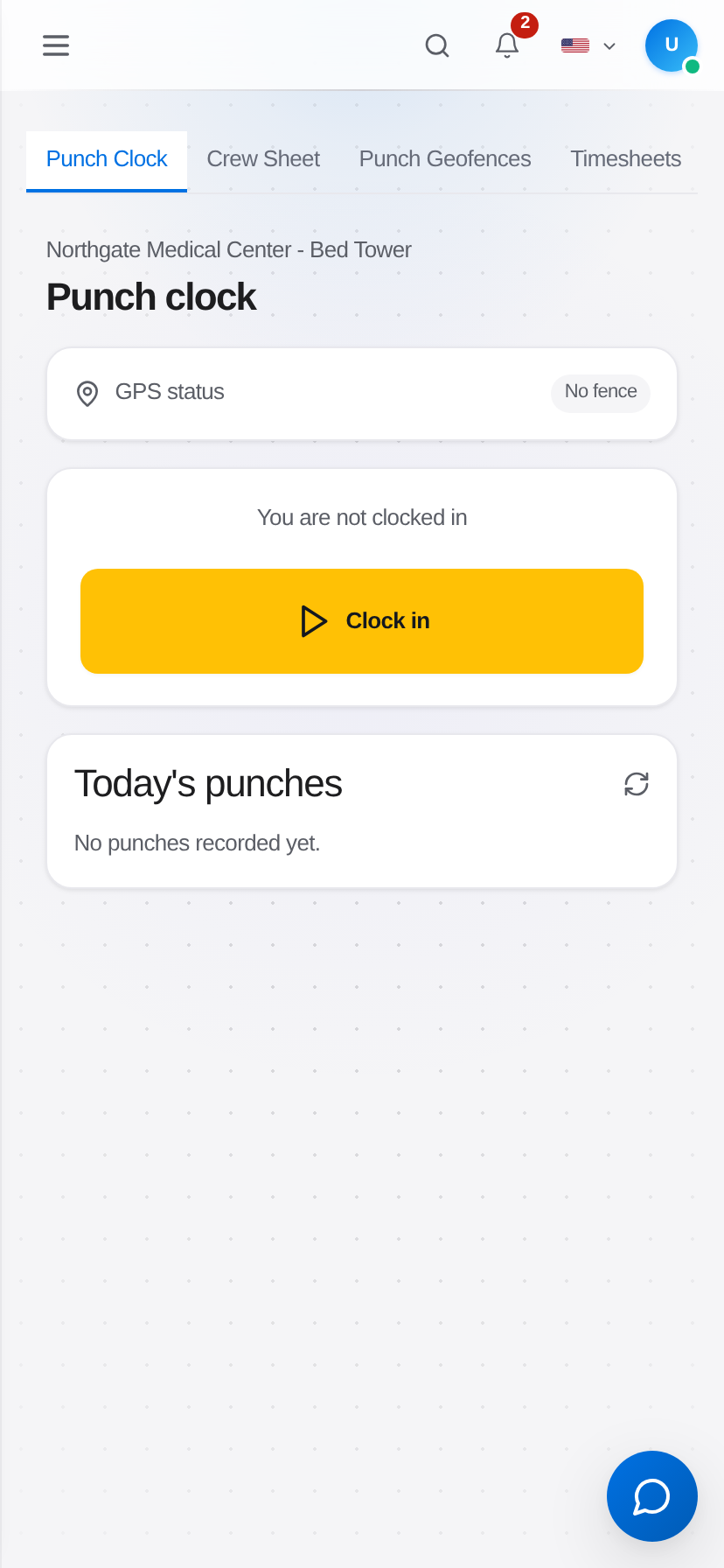
Open the mobile app and go to Time Clock.
-
Select the project. If the crew is on site, the GPS check confirms the clock-in happened at the jobsite rather than in a truck three towns away.
-
Clock the crew in, either individually or as a crew if you're the foreman clocking your whole team.
-
Select the cost code the hours are being worked against. Switching tasks mid-day means switching cost codes, which is the difference between job cost that reflects reality and job cost that averages everything into one bucket.
-
Clock out at the end of the shift. Overtime is computed from the entries themselves against the applicable rules. Entries are dated by your company's work day in its own time zone (set by the workspace owner in Settings), not the server clock, so a late shift stays on the day it was worked.
-
Review the day's entries in Field Operations → Time Clock → Timesheets from a desktop. Correct anything that's obviously wrong (a missed clock-out, a wrong cost code) before the payroll period closes.
-
Approve the time period. Approval is what releases the entries to payroll and certified payroll generation.
What happens next
Approved time entries feed three things from one record: job cost actuals by cost code, payroll processing, and certified payroll reporting on public work. Because they share a source, labor cost on the job cost report and hours on the WH-347 cannot disagree with each other, which removes the most common reconciliation headache in construction payroll.
Where the record lives
Time entries are retained under Field Operations → Time Clock → Timesheets by employee and by project, including the original clock-in and clock-out timestamps, GPS coordinates where captured, and every correction made afterward with who made it. On public work, the DOL expects to see hours by craft, by day, and by project, and this is where that comes from.
Troubleshooting
A clock-in was rejected for being off site: the GPS radius around the project can be adjusted at the project level, and for a large or linear site the default may be too tight. Entries can also be recorded manually with a reason, which stays visible in the record.
Hours are on the wrong cost code: correct the entry rather than adding an offsetting entry. Corrections keep the original value in the audit trail, and offsetting entries make the certified payroll hours look wrong even when the net is right.
Someone forgot to clock out: a missing clock-out shows as an open entry and blocks period approval. Close it with the actual departure time; the manual close is flagged in the record rather than silently backfilled.
Still stuck?
Send this straight to support (it goes directly to support@groundworkai.io).