
Set up your company profile and cost code structure
Before you begin
Have your company legal name, license numbers, tax identifiers, remit-to address, and a high-resolution logo ready. Decide on your cost code structure before you import projects: CSI MasterFormat divisions, a custom company structure, or a hybrid where CSI covers construction scopes and custom codes cover general conditions. Changing this after you have live job cost data means remapping historical actuals, which is why it belongs in your first week rather than your third month.
Steps
-
Go to Admin & Settings → Document Templates and open the Company Identity tab, then fill in the legal entity details. These fields feed document letterhead, pay application certifications, lien waiver notarization blocks, and certified payroll headers. A blank field here shows up as a blank field on a document you send to an owner.
-
Upload your logo and set brand colors. The logo resolution matters because it gets rendered into PDFs at print scale, and a small web logo becomes visibly soft on an AIA G702.
-
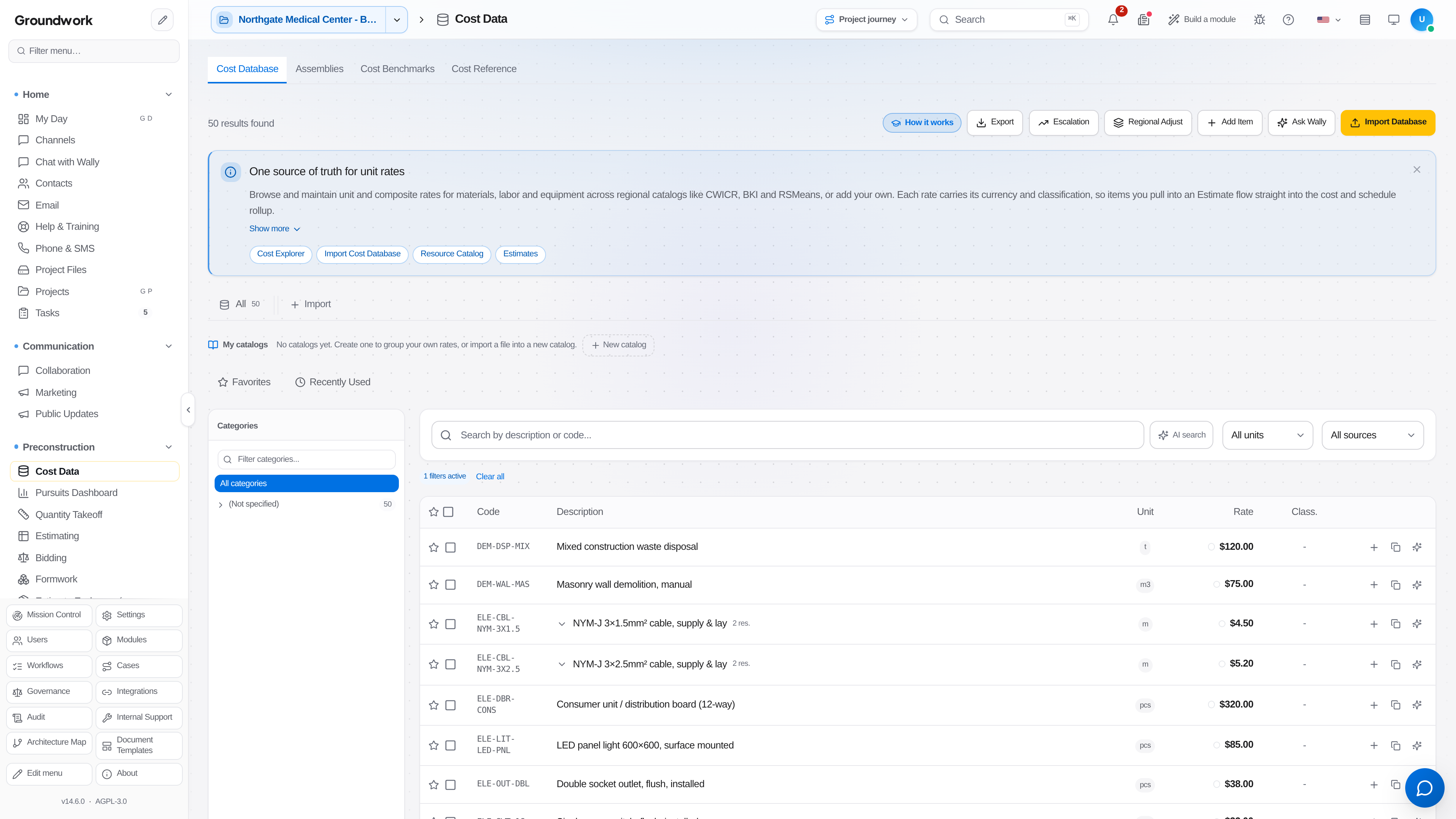
Go to Finance → Cost Codes and choose your structure. The MasterFormat catalog ships with the platform, so selecting CSI gives you the full division and section tree without building it by hand.
-
Add your company-specific codes for anything MasterFormat does not cover cleanly: general conditions line items, overhead allocations, warranty reserve, and small tools.
-
Set which codes are active for estimating versus job costing. Some companies estimate at a coarser level than they cost at, and marking the difference here stops estimators from picking a code that accounting cannot post to.
-
Configure the markup chain in the estimate editor's Markups & Overheads panel (open an estimate, then Markups): overhead, profit, bond, insurance, and any state or local tax that applies to your work. Set the sort order deliberately, since markup applied on top of markup produces a different number than markup applied in parallel.
-
Save and generate a test document from any template to confirm the profile renders correctly before real documents start going out.
What happens next
Every downstream module reads from this configuration. Estimates pull cost codes and markups, budgets inherit the same code structure so actual-versus-budget reporting lines up without a mapping table, and generated documents carry the company identity automatically. Projects imported after this point land on the right coding spine from the start.
Where the record lives
Company profile changes are tracked in the admin audit log with the user and timestamp. The cost code structure lives under Finance → Cost Codes and is versioned, so a code retired last year still resolves on historical records rather than rendering as an orphaned identifier.
Troubleshooting
A cost code is missing from the estimating picker: check whether it is marked active for estimating. Codes can be job-cost-only by design, and that is the usual explanation.
Markups produce a total that is off by a few hundred dollars: check the sort order. Bond calculated before profit and bond calculated after profit are both defensible positions, and the platform does whichever one you configured.
Logo looks pixelated on generated PDFs: upload a version at least 1200 pixels wide. PDF output renders at print resolution rather than screen resolution.
Still stuck?
Send this straight to support (it goes directly to support@groundworkai.io).