
Import an existing project's data
Before you begin
Gather what you have in exportable form: a budget or cost breakdown (CSV/XLSX), drawing files (PDF, DWG, or IFC), and, if you're switching from another platform, whatever export it offers for RFIs, submittals, and documents. Not everything needs to arrive on day one; most teams import the budget and drawings first, then backfill history as it becomes relevant.
Steps
-
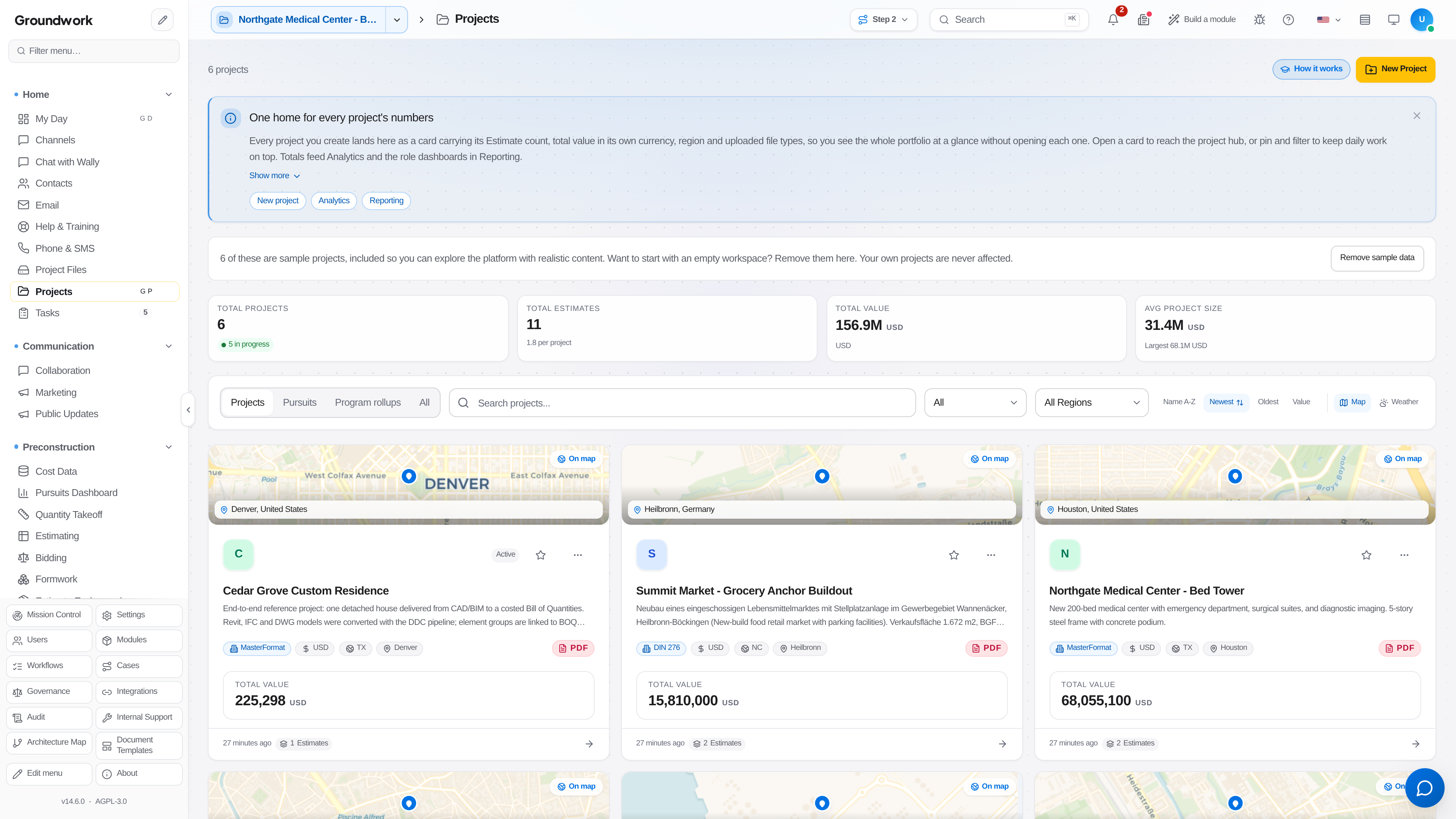
Create the project shell from Project Management → Projects → New Project with the basics: name, address, contract value.
-
Go to Overview → Project Files and use Upload files to add drawings. IFC and DWG files get parsed for BIM/CAD linking; PDFs are stored and available for markup and takeoff.
-
Import the budget under Finance → Finance → Billing & Budgets, on the Budgets tab, with Import — mapping your columns to Groundwork's cost-code structure (CSI-based by default, customizable per company).
-
If you are migrating historical RFIs or submittals from another platform, bring them in through the REST API (every record type exposes a create endpoint, and the API keeps the original dates and statuses you send rather than re-dating everything to today). There is no spreadsheet importer for these registers; for a one-time cutover, the demo team can run the migration with you.
What happens next
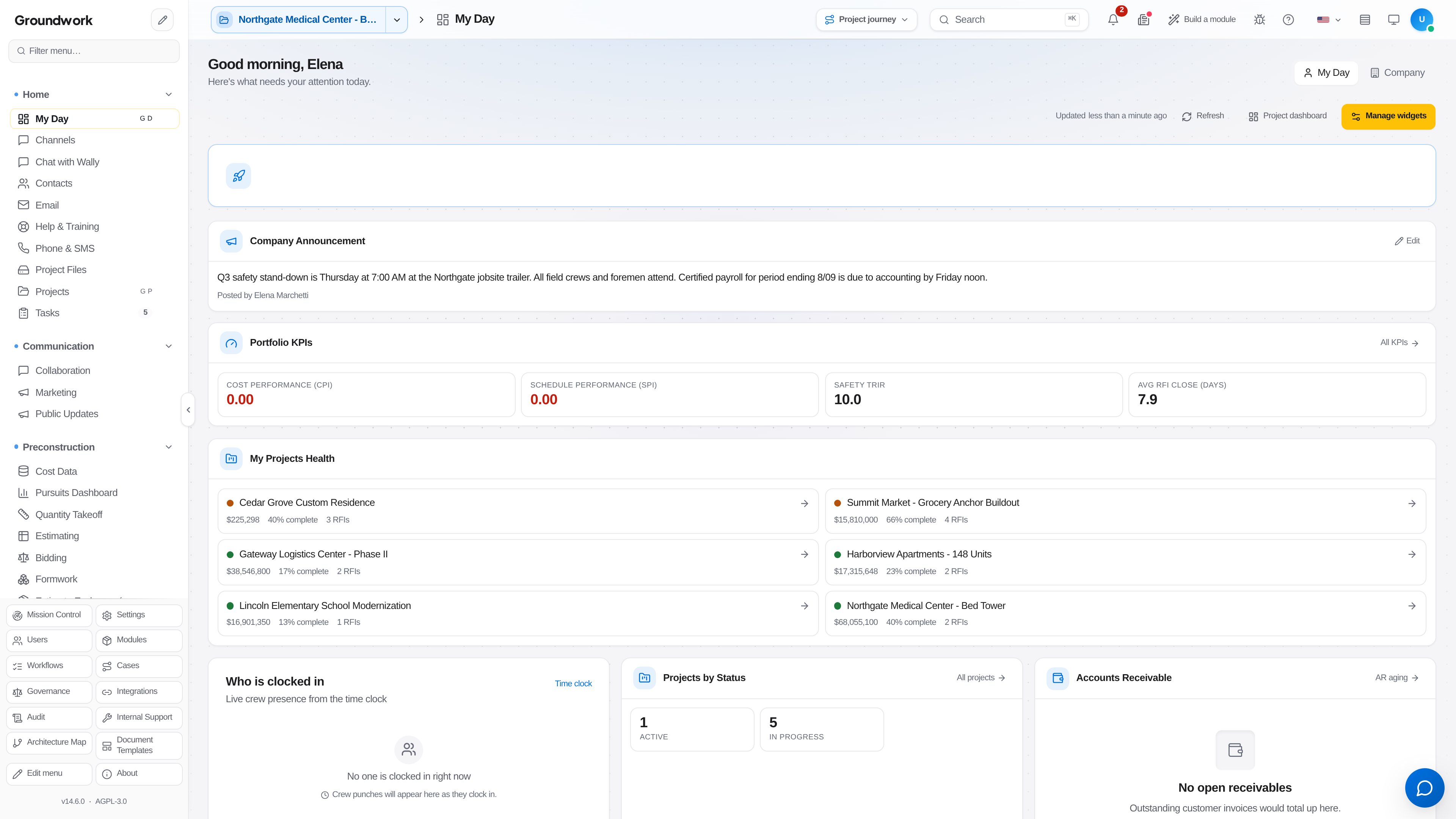
The project appears on your My Day dashboard and portfolio view immediately with whatever data has been imported so far; incomplete imports don't block using the project, they just mean some reports show partial data until the rest lands.
Where the record lives
Every file upload and rename is logged in the Activity drawer on Overview → Project Files, with who did it and when. Records created through the API carry their creator and timestamp on the record itself, so a discrepancy months later traces back to a specific user and moment rather than being treated as a mystery.
Troubleshooting
Budget import rejects some rows: usually a cost-code mapping mismatch; the import tool shows exactly which rows failed and why before committing anything, so a partial import never silently drops data without telling you.
DWG file won't parse for BIM linking: confirm it's a 2D or 3D DWG your CAD system actually exported with layers intact; a flattened/rasterized DWG will store fine as a document but won't support element-level linking.
Still stuck?
Send this straight to support (it goes directly to support@groundworkai.io).