
Create a document template and issue it
Before you begin
Decide which document type the template serves (a transmittal, a notice, a proposal cover, a meeting minutes format). The document type matters because templates are tagged by type, and that tag is what makes the right format come out when someone generates that document six months from now. Have your company letterhead assets and any required contractual language on hand.
Steps
-
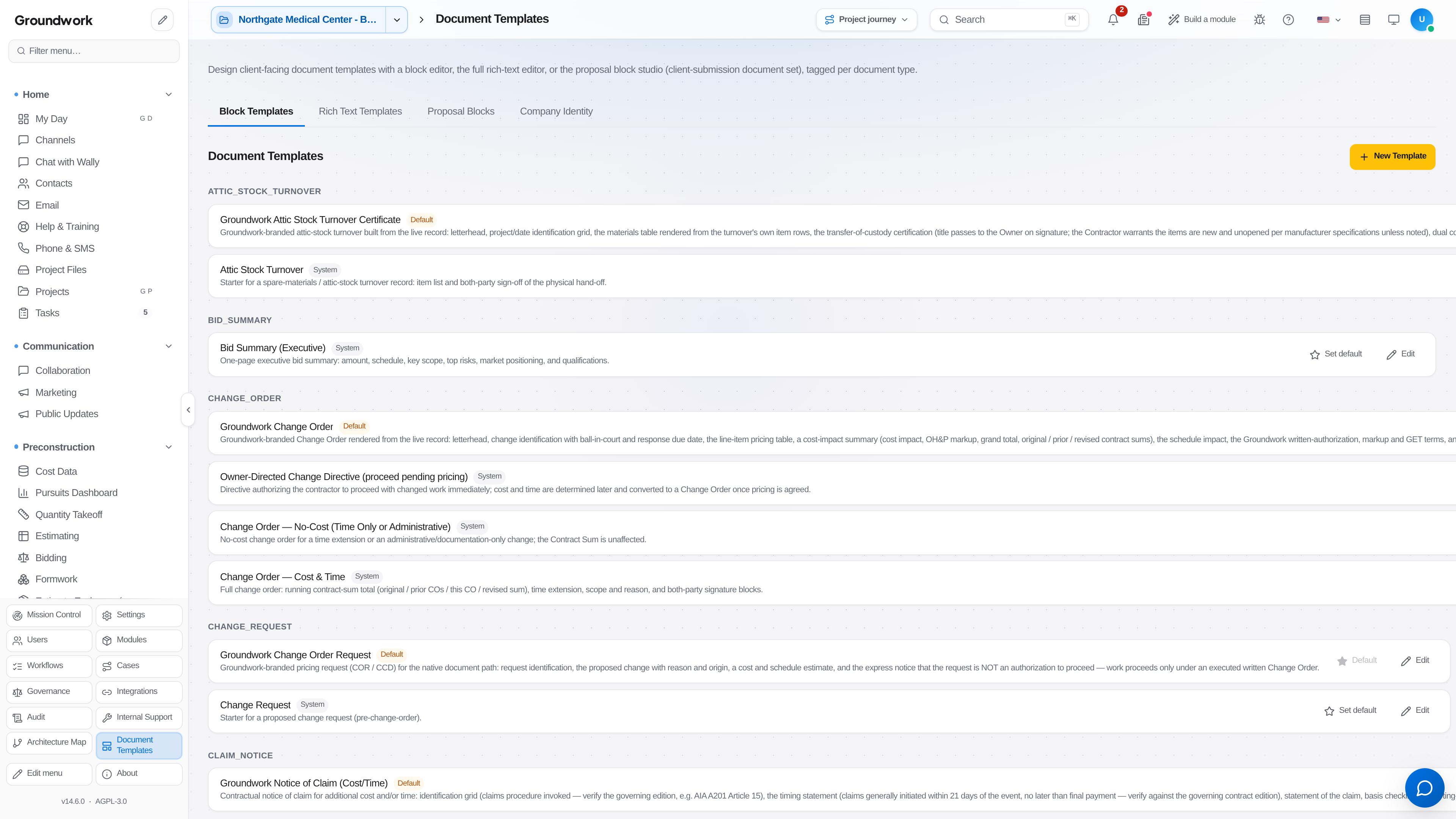
Go to Admin & Settings → Document Templates, stay on the Block Templates tab, and choose New Template.
-
Choose the editor. The block editor is for structured documents where fields bind to real project data (a transmittal listing documents, an RFI response form). The rich text editor is for narrative documents where the writing is the substance.
-
Tag the template with its document type. This is the field that governs which templates appear when someone generates that document type.
-
Insert data bindings for fields that should come from the project rather than being typed: project name and number, contract parties, dates, document references. Bound fields cannot go stale the way a copied header can.
-
Set the template as the default for its document type if it should be the one everyone gets by default. A user-chosen default is respected, so setting a new default doesn't override a deliberate per-project choice.
-
Save and generate a test document against a real project to confirm the bindings resolve and the layout holds.
-
To issue a document, generate it from the record it belongs to (a transmittal from the files being sent, a notice from the contract it references), then transmit it to the distribution list.
What happens next
Issuing a document creates a transmittal record: what was sent, to whom, on what date, and in which version. That record is the answer to "we never received that", and it exists whether or not anyone remembered to save the email. Documents that require signature route through the e-signature workflow, and the signed version becomes part of the permanent project record automatically.
Where the record lives
Templates live under Admin & Settings → Document Templates with their revision history. Generated documents are logged in the document register with their status, and transmittals are retained under Project Management → Records → Transmittals with their distribution lists and delivery status. Deleted documents go to a recoverable trash rather than disappearing, and versions are kept rather than overwritten.
Troubleshooting
A bound field renders blank: the underlying project field is empty rather than the binding being broken. Fill it in on the project record and regenerate.
A generated document doesn't match the template: check whether the document was generated before the template was last revised. Documents are snapshots of the template at generation time, deliberately, so a template edit doesn't retroactively rewrite documents already sent.
Formatting collapses in the generated PDF: the PDF generation path supports the template editor's own styles rather than arbitrary inline CSS pasted in from another tool. Rebuild the affected section using the editor's formatting controls.
Still stuck?
Send this straight to support (it goes directly to support@groundworkai.io).